
I spent years assisting senior photographers, watching them spend hours hunched over tablets, obsessively smoothing out every single pore until their subjects looked like they’d been carved out of a block of expensive soap. It’s a ridiculous waste of time, and frankly, it’s a betrayal of the person sitting in your chair. Most people think they need a complex, twenty-step workflow to fix a client’s perceived flaws, but they’re missing the point entirely. If you want to learn how to retouch a portrait without plastic skin, you have to stop treating the human face like a digital error that needs correcting.
I’m not here to sell you a preset pack or a masterclass on how to hide reality; I’m here to tell you how to preserve it. In this notebook, I’m going to show you the practical, messy middle ground—the specific way I handle frequency separation and dodge-and-burn so that the skin still looks like skin, even under studio lights. We’re going to focus on the texture that actually matters, making sure that when your client looks at their portrait, they see themselves, not a mannequin.
The Lie of Perfection Why Your Skin Looks Like Plastic
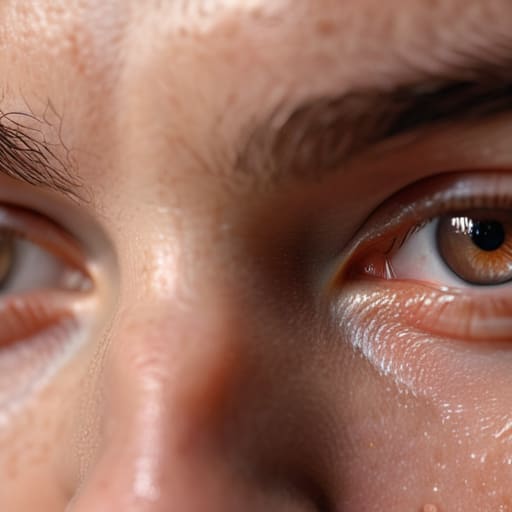
The problem starts the second you decide that a pore is an error rather than a feature. I see it all the time in student portfolios: they get a beautiful, sharp portrait, and then they immediately try to “fix” it by dragging a Gaussian blur over the cheekbones. They think they’re cleaning up the image, but they’re actually just murdering the light. When you erase the micro-shadows and the tiny highlights that define a person’s face, you aren’t retouching; you’re just turning a human being into a low-resolution render.
If you want to actually master preserving skin texture in Photoshop, you have to stop treating the skin like a flat surface of color. Real skin has topography. It has character. The moment you lose that, you’ve lost the connection with the viewer. Most people jump straight into a complex frequency separation tutorial without understanding that the goal isn’t to smooth the texture layer, but to manage the color transitions underneath it. If you end up with a face that looks like it was molded out of expensive, matte-finish silicone, you haven’t done a professional job—you’ve just made a very expensive mistake.
How to Retouch a Portrait Without Plastic Skin
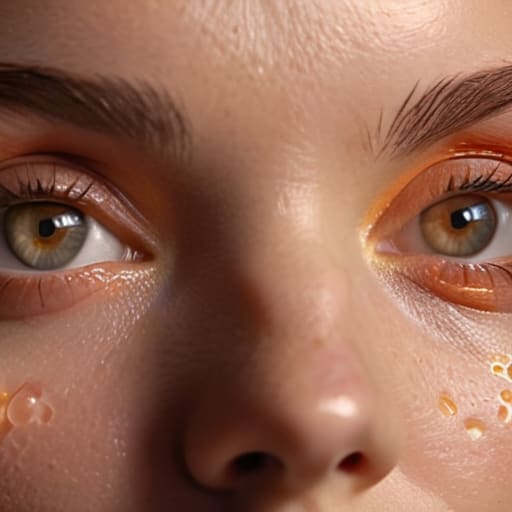
The first thing you need to do is stop treating the skin like a surface to be sanded down. If you’re looking for a quick fix, you’ll likely end up with that dreaded, airbrushed smudge that makes people look like they belong in a CGI movie. Instead, lean into a high-end portrait retouching workflow that prioritizes structure over smoothness. I always start with dodge and burn portrait retouching; it’s tedious, yes, but it allows you to manage the micro-contrast of the skin without touching the actual pixels that hold the texture. You’re essentially sculpting with light rather than erasing the person underneath.
If you do decide to use frequency separation, treat it like a scalpel, not a sledgehammer. Most people mess up a frequency separation tutorial by cranking the low-frequency layer until the skin looks like a sheet of wax. You’re only there to even out the blotchy color transitions—the redness or the uneven tans—while leaving the high-frequency layer (the actual pores and fine lines) completely untouched. The goal is preserving skin texture in Photoshop so that when the client zooms in, they see a human being, not a digital error.
The Frequency Separation Tutorial for Real Human Texture
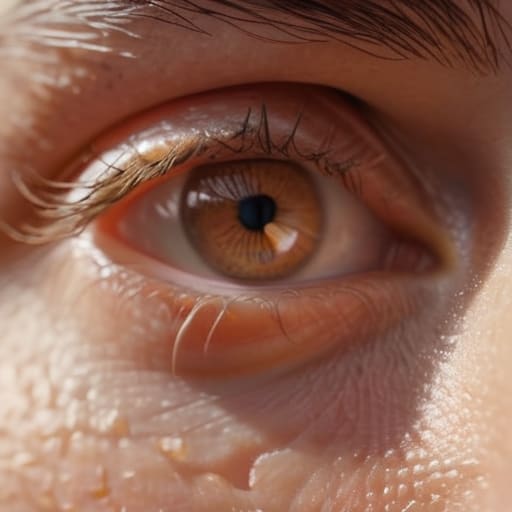
Look, I know the term “Frequency Separation” sounds like something a surgeon or a high-end retoucher in a windowless studio in London would use to justify a massive invoice, but it’s actually just a way to stop fighting your pixels. When you follow a standard frequency separation tutorial, the goal isn’t to magically delete pores; it’s to split the image into two layers: one for the color (the low frequency) and one for the texture (the high frequency). This is the secret to preserving skin texture in Photoshop because it allows you to smooth out a blotchy complexion or a weird shadow without actually touching the skin’s surface.
The mistake most people make is going overboard on the color layer. If you use a large brush to smear the tones, you end up with that “airbrushed” look that makes people look like they’ve been rendered in a cheap video game. Instead, use a very small, low-opacity brush to fix the transitions between tones. You want to address the discoloration, not the structure. If you can fix the redness around a nose or a patchy chin without blurring the actual grain of the skin, you’ve actually done the work.
Preserving Skin Texture in Photoshop Beyond the Blur
Once you’ve got your layers set up for frequency separation, the temptation is to start sliding that opacity bar around like you’re trying to hide a crime scene. Resist it. The goal of a high-end portrait retouching workflow isn’t to delete the skin; it’s to manage the transitions. If you find yourself obsessing over every single pore, stop. You aren’t a surgeon, and the client isn’t paying you to create a mannequin. If the texture looks like it’s floating on top of a smudge, you’ve gone too far.
Instead of leaning on the heavy-duty blending tools, I always go back to dodge and burn portrait retouching. It’s slower, more tedious, and frankly, it’s the kind of work that makes your eyes ache after three hours, but it’s how you actually keep the character in the face. By manually adjusting the micro-contrast of individual spots or shadows, you’re working with the light rather than fighting against it. This is the real secret to avoiding over-processed skin looks; you aren’t changing the anatomy, you’re just gently guiding the viewer’s eye away from the temporary distractions.
Mastering Dodge and Burn Portrait Retouching for Depth
Once you’ve used frequency separation to clean up the blotchiness, don’t just sit there. Most people stop once the skin looks “even,” but that’s exactly when they fall into the trap of making the face look like a flat, matte piece of cardboard. If you want to move from basic cleanup to a high-end portrait retouching workflow, you have to bring the dimension back. I’m talking about dodge and burn. This isn’t about changing the person; it’s about subtly sculpting the light that was already there when I pressed the shutter.
Instead of reaching for a heavy-handed brush, I work in small, surgical increments. I use a low-opacity brush to catch the highlights on the cheekbones and the bridge of the nose, and then I gently darken the subtle shadows under the jawline. It’s tedious, and your eyes will probably hurt after an hour, but this is the secret to avoiding over-processed skin looks. You aren’t erasing the features; you are simply emphasizing the bone structure so the subject doesn’t look like they’ve been flattened by a steamroller. If you can’t see the transition between light and shadow, you haven’t finished the job.
Avoiding Over Processed Skin Looks and Finding Natural Tones
The biggest mistake I see in a high-end portrait retouching workflow isn’t the technical execution; it’s the lack of restraint. You can follow a frequency separation tutorial to the letter and still end up with a subject who looks like they’ve been dipped in wax. It happens when you treat every micro-variation in tone as a “flaw” that needs correcting. Skin isn’t supposed to be a flat, monochromatic plane. It has capillaries, slight shifts in warmth, and tiny shadows that give the face its structure. If you scrub away all those subtle color shifts, you aren’t just cleaning up the image—you’re removing the life from it.
When you’re aiming for natural skin tones photography, you have to learn to love the imperfections that don’t actually distract the eye. Instead of hunting for every single uneven patch, focus on the larger areas of color blotchiness first. If you find yourself zooming in to 400% to fix a pore that is practically invisible to the naked eye, stop immediately. You are no longer retouching; you are over-polishing. The goal is to make the viewer feel like they are looking at a person, not a digital reconstruction.
The "Don't Ruin It" Checklist: 5 Ways to Keep the Human in the Frame
- Zoom out every ten minutes. I know, it’s tempting to stay at 300% and obsess over a single pore, but if you spend an hour fixing a millimeter of skin and then zoom out only to realize the whole face looks like a wax figure, you’ve wasted your time and my patience. If it doesn’t look right from a distance, it isn’t right.
- Respect the imperfections that actually matter. A permanent scar or a distinctive mole isn’t a “blemish” to be erased; it’s part of the person’s geography. If you wipe away everything that makes them recognizable, you haven’t retouched a portrait, you’ve created a mannequin.
- Watch your opacity levels like a hawk. My biggest mistake as an assistant was thinking “more is better.” If you’re using a frequency separation layer or a healing brush, dial that opacity back to 40% or 50%. You want the correction to be felt, not seen.
- Stop fighting the color of the skin. People have undertones—reds, yellows, greens—and they change depending on the light in the room. If you try to force every face into a generic, creamy peach tone, you kill the life in the eyes. Let the skin be a little bit messy; it’s more honest that way.
- Use the “blink test.” Every time you finish a heavy retouching pass, close your eyes for three seconds and open them. If the first thing you notice is how “smooth” the skin is rather than the expression in the subject’s eyes, you’ve gone too far. Go back and undo.
The Soul in the Grain
If you spend your whole session trying to polish away every pore and uneven shadow, you aren’t retouching a portrait—you’re erasing a person. My job isn’t to make them look like a CGI render; it’s to fix the temporary distractions so we can actually see the person who was sitting in front of my lens.
Iwona Krawczyk
The Final Frame
At the end of the day, retouching isn’t about fixing a person; it’s about managing the light and the flaws that the lens decided to exaggerate. We’ve gone through the heavy lifting—using frequency separation to untangle tone from texture, and employing dodge and burn to rebuild the dimension that a heavy-handed blur usually destroys. If you remember nothing else, remember that your goal is to respect the anatomy of the face. Use your tools to smooth out the temporary distractions—the stray hair, the uneven redness, the mid-day shine—but leave the character intact. If you find yourself reaching for the opacity slider just to make something “safer,” stop. You aren’t making it better; you’re just making it generic.
I spent years assisting photographers who thought a “clean” image meant a featureless one, and I can tell you from experience that those photos are the ones that end up in the digital graveyard. A portrait is a record of a human being existing in a specific moment of time, and that moment includes every pore and fine line. When you finish a session, don’t ask yourself if the skin looks perfect; ask yourself if the person looks present. If you’ve managed to keep the texture while cleaning up the chaos, you’ve done the real work. Now, close the laptop, step away from the screen, and trust your eyes.