
I remember standing in a drafty studio three years ago, staring at a blank screen while a client—who had already changed their mind about the lighting twice—waited impatiently for their proofs. I had shot the entire session on a single, expensive card that had decided, quite suddenly, to become a useless piece of plastic. It wasn’t a lighting failure or a bad lens; it was just a moment of pure, avoidable panic. If I had known then how to set up dual card backup properly, I wouldn’t have spent the next six hours apologizing and promising a discount. We spend so much time obsessing over aperture and modifiers, but the real disaster is usually something much smaller and much more preventable.
In this notebook entry, I’m skipping the technical jargon and getting straight to the workflow that actually keeps you sane. I’ll walk you through exactly how to set up dual card backup on your specific camera, the difference between mirroring and overflow modes, and why you shouldn’t trust a single slot with your life. This isn’t about buying more gear; it’s about building a safety net so you can actually focus on the person in front of your lens instead of praying to the gods of data integrity.
Guide Overview
Tools & Supplies
- Computer or Laptop to manage file transfers
- External Hard Drive enclosure or dock for quick access
- External Hard Drive 1 (Primary storage, capacity matching main drive)
- External Hard Drive 2 (Backup storage, capacity matching main drive)
- High-speed USB/Thunderbolt cables for data transfer
Step-by-Step Instructions
- 1. First, you need to check if your camera actually supports it. I’ve seen people try to force this on older bodies only to realize they have one CF slot and one SD slot that don’t talk to each other the way they need to. Dig through your manual or the menu settings for something labeled “Backup” or “Simultaneous Recording.” If you don’t see it, you’re likely stuck with single-slot shooting, and we need to have a different conversation about your workflow.
- 2. Once you’ve confirmed the capability, grab two cards of the exact same capacity. I know, it sounds tedious, but if you put a 64GB card in Slot 1 and a 32GB card in Slot 2, the camera is going to stop writing the second that smaller card is full. You’ll be mid-shoot, the client will be staring at you, and you’ll realize you’ve lost your rhythm because the camera is throwing an error message.
- 3. Go into your playback or setup menu and toggle the write setting from “Select” or “Standby” to “Backup.” This is the most crucial step. In “Select” mode, the camera is just waiting for you to tell it which card to use, which is fine for a casual Sunday walk, but it’s a recipe for disaster during a wedding or a high-stakes corporate shoot. You want that camera to be writing to both cards at the same time, every single time you press the shutter.
- 4. Check your file naming convention in the menu. Some cameras will name the files differently on each card—like adding a ‘A’ or ‘B’ to the sequence—to help you keep track of them later. I prefer when they stay identical so that when I’m offloading to my drive, I don’t have to play detective to figure out which file belongs to which sequence. It saves a massive amount of headache during the editing phase.
- 5. Don’t just assume it’s working because the menu says it is. After you’ve set it up, do a quick test. Take five or six shots, go into the playback mode, and verify that the data is actually present on both cards. It takes ten seconds, but it’s the difference between a successful wrap and a very long, very expensive apology to a client.
- 6. Finally, set a rule for yourself regarding the cards themselves. Never, ever use a card that has been “rescued” from a previous failure or one that’s been sitting in a junk drawer for three years. If you’re running a dual-slot setup, you are doubling your chances of a successful shoot, but you are also doubling the number of things that can physically fail. Buy fresh, high-speed cards and treat them like they are part of your actual camera body.
Understanding How to Set Up Dual Card Backup
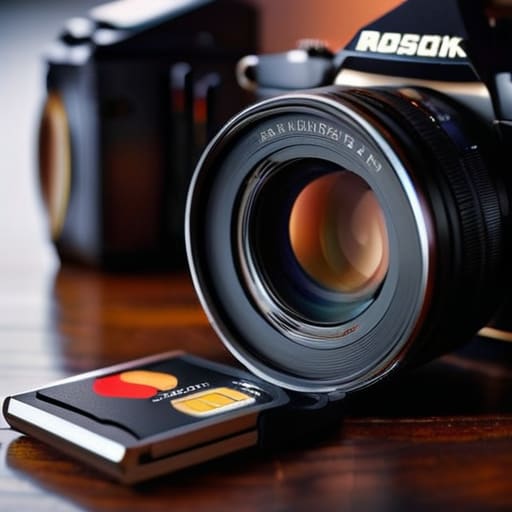
Before you dive into the menus, you need to understand that not all cameras treat their two slots the same way. Most people assume “dual slot” means “automatic safety net,” but that’s a dangerous assumption. You’ll usually encounter two distinct options: simultaneous vs sequential recording. Sequential recording is basically just using the second card as extra storage once the first is full—it’s great for a long day of weddings where you don’t want to swap cards mid-ceremony, but it offers zero protection if a card dies. If you actually want professional video recording safety, you have to ensure you are in the mode where the camera writes the exact same data to both cards at the same instant.
I’ve seen enough panicked faces in the back of a taxi after a shoot to know that an SD card redundancy workflow isn’t a luxury; it’s the only thing that lets you sleep. When you’re configuring your memory card backup settings, check that your cards are of the same speed class. If you pair a high-speed V90 card with a cheap, slow card in the second slot, the camera will often throttle the entire write speed to match the slowest link, which is a nightmare when you’re shooting high-bitrate video.
Key Things to Know
Before you dive into the menus, you need to understand that not all cameras handle extra slots the same way. Most of the time, you’ll be choosing between simultaneous vs sequential recording. Sequential is fine for a casual Sunday walk, where the second card only kicks in once the first is full, but it won’t save you if a card fails mid-shoot. For anything involving a client or a contract, you want simultaneous recording. This is the heart of a proper SD card redundancy workflow; every time you click the shutter, the data is being written to two places at once. If one card decides to die halfway through a wedding, you aren’t left staring at a blank screen and a sinking feeling in your stomach.
One thing I learned the hard way during my assisting years is that your memory card backup settings are only as good as the cards themselves. Don’t mix a high-speed UHS-II card with a cheap, slow one just because you have them lying around. If the camera is trying to write to both simultaneously and one card can’t keep up, the whole system can stutter or, worse, fail. Always use matching pairs to ensure your professional video recording safety stays intact.
Practical Tips and Steps
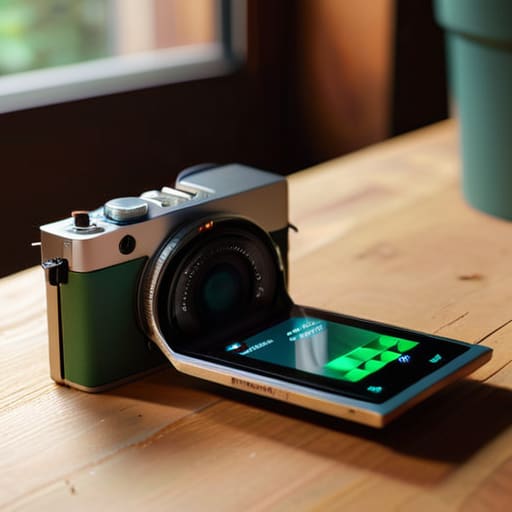
First, don’t just set it and forget it. You need to dive into your specific camera dual slot recording modes before you ever step foot in a studio. Most people assume the camera is just making a copy, but you need to verify if you’re actually using simultaneous vs sequential recording. If you’re shooting a wedding—or even just a high-stakes corporate headshot session—you want the camera writing to both cards at the exact same moment. If you accidentally select “overflow” mode, you aren’t actually creating a backup; you’re just using two cards to get more storage, which is a recipe for a heart attack when a card fails.
I also can’t stress enough that your SD card redundancy workflow has to include a physical check of the cards when you get home. I’ve seen too many assistants assume that because the “backup” light was on, the files are safe. Check that both cards have the same number of files. If one is short, your settings were wrong. It’s a tedious five minutes, but it’s much better than realizing a client’s entire shoot is gone because of a mechanical card error halfway through your edit.
The stuff that actually keeps you from having a breakdown
- Don’t trust the ‘auto’ setting blindly. I’ve seen people walk into a shoot thinking their camera is doing the heavy lifting, only to realize they’ve set it to ‘overflow’ instead of ‘mirror.’ Mirroring writes the exact same data to both cards simultaneously. If one card dies mid-burst, the other has the twin. Overflow just fills one and then the other, which is useless if the first one corrupts.
- Buy two of the exact same card. I know, it sounds redundant, but if you mix a SanDisk Extreme with some cheap no-name card you found in a drawer, the write speeds won’t match. Your camera will default to the speed of the slowest card, and suddenly your buffer is choking right when you’re trying to catch a fleeting expression.
- Check your capacity before you even pack your bag. If you’re shooting high-bitrate video for a client, a 64GB card is going to vanish in minutes. If your dual backup is set up, you’re effectively halving your storage space per card because you’re writing twice as much data. Do the math on your total shoot time so you aren’t staring at a ‘Card Full’ error halfway through a portrait session.
- Format in-camera, always. I can’t stress this enough. Don’t use your computer to wipe the cards; it leaves behind a digital mess that can confuse the camera’s file structure. Format them in the body of the camera you’re actually using. It takes ten seconds and prevents that specific brand of panic where the camera refuses to recognize the card because the file system is wonky.
- Treat your cards like they’re made of glass. When you’re rushing between a lighting setup and a client who is already looking at their watch, that’s when you drop a card or shove it into a pocket with a stray paperclip. Get a proper, hard-shell case. It’s not about being precious; it’s about ensuring the physical medium actually survives the trip from the studio to the laptop.
The safety net you hope you never need
I’ve spent enough years watching people freeze when a card fails to know that the tech isn’t the point—the point is your sanity. Setting up dual card backup isn’t about being a gear nerd; it’s about making sure that when the chaos of a shoot inevitably hits, you aren’t spending the drive home wondering if you just deleted a client’s entire wedding or a year’s worth of commissions.
Iwona Krawczyk
The safety net you hope you never need
At the end of the day, setting up dual card backup isn’t about being a tech obsessive; it’s about acknowledging that things will go wrong. You’ve checked your lighting, you’ve managed the client’s nervous hands, and you’ve finally found that perfect angle, so don’t let a single corrupted slot ruin the entire commission. Remember to verify your camera settings immediately after every gear change, ensure your cards are formatted in-camera rather than on a laptop, and always, always use cards with matching write speeds. It takes an extra thirty seconds of your setup time, but that is a small price to pay for the peace of mind that comes with knowing your files are being written twice, simultaneously, to two different places.
I spent years assisting photographers who had the most expensive glass money could buy, only to watch them crumble when a single card failed during a high-stakes wedding. It was a brutal lesson in the fact that the gear isn’t the job—protecting the work is. Once you have this redundancy dialed in, you can stop looking at your camera’s menu screens and start looking at your subject. You can actually be present in the room, watching the light shift and the expressions change, because you know the data is safe. Trust the process, set the backup, and then go make something worth saving.