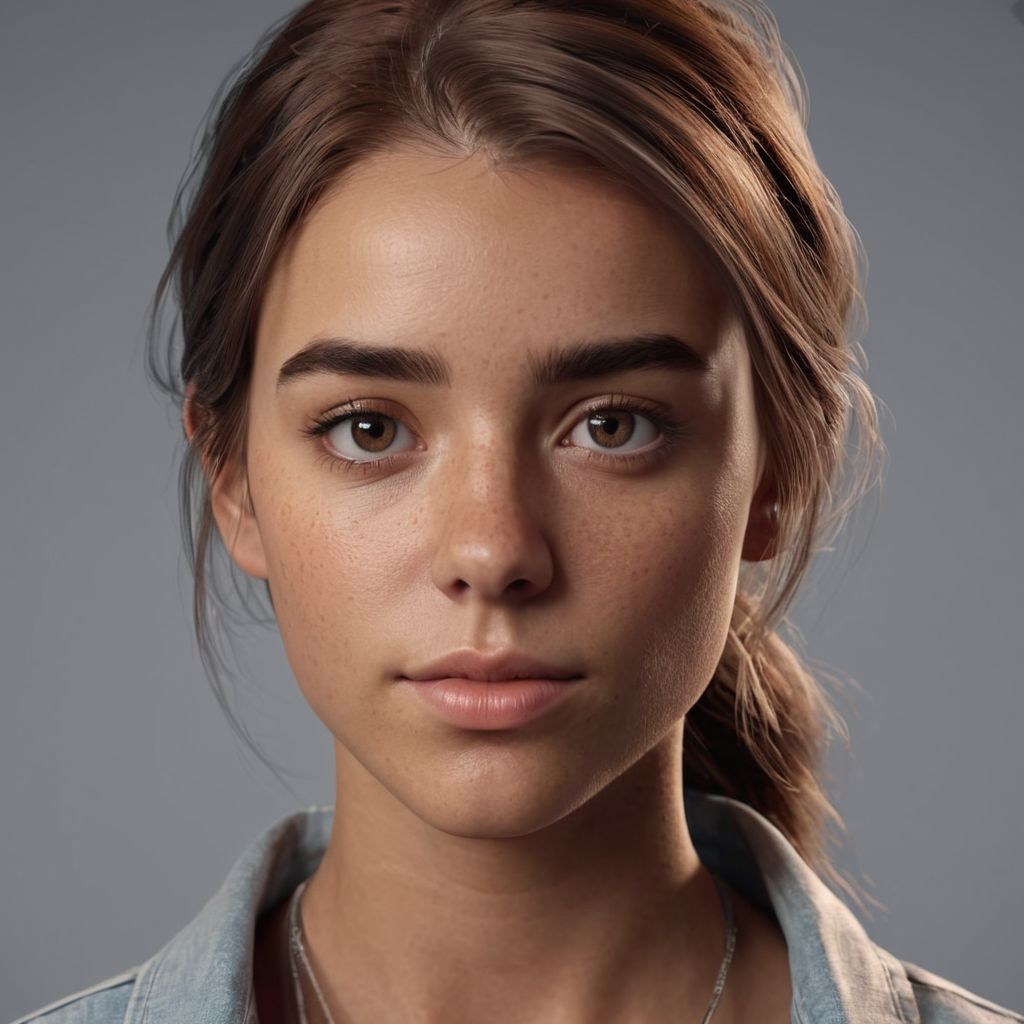
I spent years watching people buy the most expensive filters and obsess over “artistic” presets, only to end up with images that look like muddy, gray soup. There is this persistent, exhausting myth that you need a magic software button or a specialized sensor to achieve depth, but that’s just nonsense. Most of the time, when people ask me how to convert to black and white properly, they aren’t actually struggling with the math of a color channel; they’re struggling because they didn’t see the light in the room to begin with. You can’t fix a flat, lifeless composition with a slider, no matter how much you tweak the contrast.
I’m not here to give you a lecture on the physics of light or a list of expensive plugins you don’t need. Instead, I want to talk about the intentionality of the shift—how to look at a scene and decide which tones deserve to stay and which ones need to die for the sake of the image. I’ll show you how I approach the transition from color to monochrome using what I’ve learned from years of shooting real people in real, messy rooms. This is about seeing the structure beneath the color, not just hitting a button and hoping for the best.
The Color Is Not the Problem Why Your Conversion Fails
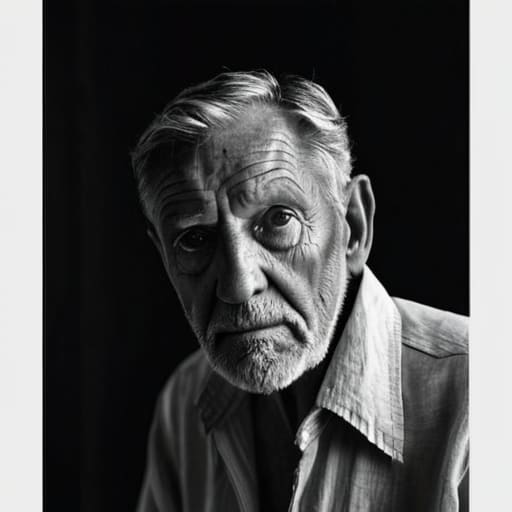
The biggest mistake I see people make is treating the desaturation slider like a magic wand. They think they’re making a black and white image, but they’re actually just making a gray, muddy mess. If you just strip the color away, you lose the structural soul of the portrait. You end up with a flat, lifeless image where the subject’s skin tone bleeds into the background because there’s no longer any chromatic distinction to separate them.
The real work happens when you stop looking at color and start looking at light. A successful color to grayscale conversion workflow isn’t about removing hue; it’s about deciding which colors should become light and which should become shadow. This is where you start adjusting luminance channels to do the heavy lifting. If your subject has blue eyes, you don’t just turn them gray; you manipulate the blue channel to decide if those eyes should pop with brightness or recede into a moody, dark stare. You aren’t just deleting color; you are rebuilding the image using light as your only tool.
Mastering the Color to Grayscale Conversion Workflow
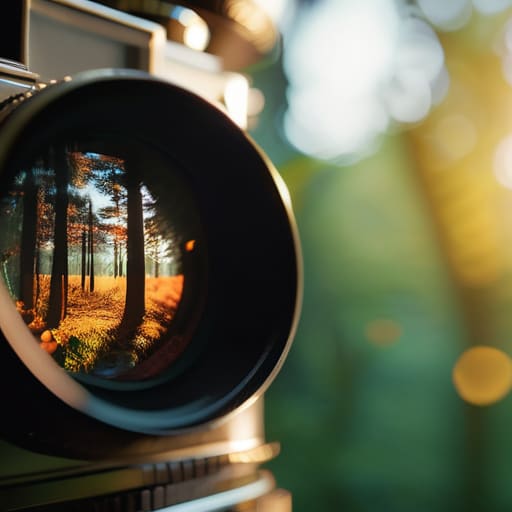
If you’re just hitting the “desaturate” button and calling it a day, you aren’t converting; you’re just bleaching the life out of the frame. A proper color to grayscale conversion workflow requires you to look at the image through a different lens—literally. Instead of treating the image as a single layer of gray, you need to treat it as a collection of hidden color data. This is where you stop being a button-pusher and start acting like a printer.
The secret is in adjusting luminance channels within your software. When I’m working on a portrait, I don’t just want “gray”; I want the skin tones to feel warm and the navy blazer to feel heavy and deep. By tweaking the individual color sliders—boosting the reds to brighten the skin or pulling down the blues to darken a background—you control the perceived brightness of those tones without ever touching a saturation slider. It’s about carving out depth where the light naturally wants to flatten everything into a muddy mess.
How to Convert to Black and White Properly Using Luminance
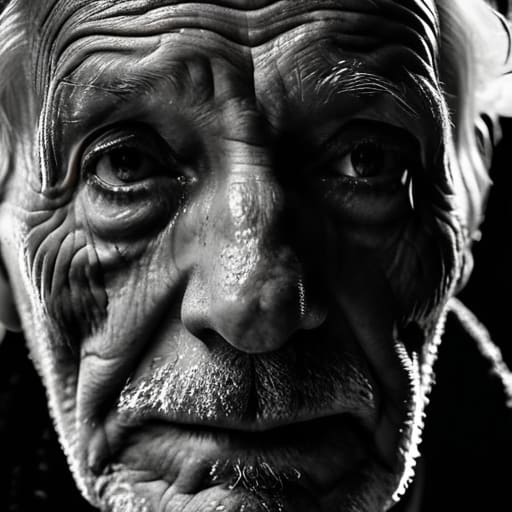
If you’re just hitting the “desaturate” button and hoping for the best, you’re essentially leaving your best work to chance. The real magic happens when you stop thinking about color as a pigment and start seeing it as light. This is where adjusting luminance channels becomes your most important tool. When I’m looking at a portrait, I don’t just want it gray; I want the skin tones to feel luminous without the red shirt of the subject turning into a muddy, dark blob that eats the entire composition.
By isolating specific color channels, you can manipulate how much light each color contributes to the final image. If you have a subject with blue eyes that are getting lost in a sea of gray, you don’t just crank the contrast; you go into your B&W mixer and bump up the luminance of the blues. This is how you actually achieve improving tonal range in B&W rather than just making a high-contrast mess. It’s about surgical precision—telling the software exactly which colors deserve to be bright and which ones should recede into the shadows to create depth.
Adjusting Luminance Channels to Find the Hidden Light
Once you’ve got your basic grayscale conversion set, you’ll usually realize the image looks a bit flat—like it’s missing the soul of the original shot. This is where adjusting luminance channels becomes your most important tool. Instead of just cranking the global contrast slider like a novice, you need to go into the individual color channels. If you’re working on a portrait and the subject’s skin looks muddy or gray, try bumping up the Red or Yellow luminance. It pulls the light out of the skin tones without blowing out the background, giving you that creamy, intentional look that separates a professional shot from a quick filter.
The real magic, though, happens when you use these monochrome color grading techniques to create separation. If you have a subject wearing a dark blue shirt against a dark wall, they’re going to bleed together into a single, unreadable blob. By dropping the luminance of the Blue channel specifically, you can force that shirt to recede or pop, effectively sculpting the subject with light that wasn’t even there when you pressed the shutter. It’s about finding the depth that the camera’s sensor couldn’t quite translate.
Beyond the Preset Sophisticated Monochrome Color Grading Techniques
Look, I know the temptation to just slap a “Silver Gelatin” preset on a RAW file and call it a day, but that’s how you end up with images that look like every other generic LinkedIn headshot. Real monochrome color grading techniques aren’t about a single click; they are about how you manipulate the underlying color data to dictate the mood. If you have a portrait where the subject is wearing a bright red tie that’s sucking all the attention away from their eyes, you don’t just desaturate. You go into your color mixer and drop the red luminance specifically. You’re essentially sculpting with light that no longer exists in the final frame.
This is where you move past simple digital photo editing grayscale and start thinking like a printer. I often find myself fighting a muddy mid-tone because the original color balance was too warm. Instead of cranking the contrast and blowing out your highlights, try fine-tuning the individual color channels to see how they affect the skin tones. It’s about controlled separation. You want to create depth by ensuring your blacks aren’t just “black,” but have a specific weight that anchors the composition.
Managing Histogram for Black and White to Improve Tonal Range
Once you’ve finished the heavy lifting of adjusting luminance channels, you’ll likely find yourself staring at a histogram that looks either like a collapsed tent or a mountain range with no middle ground. This is where most people panic and start cranking the contrast slider, which is a mistake. If you’re just slamming the contrast to get “drama,” you’re actually just clipping your highlights into white voids and crushing your shadows into a muddy mess. Instead, treat the histogram as your map for improving tonal range in B&W. I want to see a distribution that actually uses the space; if your data is all bunched up in the center, your image will feel flat and clinical, no matter how much monochrome color grading techniques you apply later.
When I’m sitting there, I look for that delicate balance between the extremes. I’m not looking for a perfect bell curve—real life is rarely that polite—but I am looking to ensure I haven’t lost the texture in a subject’s dark coat or the subtle detail in a backlit window. Managing histogram for black and white means recognizing when you’ve pushed the digital photo editing grayscale process too far. If the spikes are hitting the far left or right walls, stop. Back off. You can always add punch in post, but you can’t recover a highlight that has turned into a hole in the paper.
Five ways to stop your B&W from looking like a muddy mess
- Stop shooting for the “vibe” and start shooting for the separation. If your subject is wearing a navy blazer against a dark grey wall, no amount of slider-fiddling in Lightroom will save you from that flat, lifeless blob. If the colors don’t have enough contrast to begin with, your black and white will always look like a grey smudge.
- Check your skin tones before you commit to the grade. I’ve seen so many “moody” portraits where the person ends up looking like a grey statue because the photographer cranked the red and yellow luminance channels too low. Keep a close eye on those sliders; you want skin that looks like skin, not like wet cement.
- Use your eyes, not just the histogram. A histogram will tell you if you have data in the shadows, but it won’t tell you if your subject’s eyes have turned into black pits. Sometimes you have to manually lift the exposure on a specific luminance channel just to bring the soul back into a face, even if the “math” says the exposure is fine.
- Don’t be afraid of a little digital grain, but don’t use it as a crutch. I develop film in my kitchen, so I know what real texture looks like. If your conversion feels too “clean” or clinical, a bit of grain can help, but if you’re adding it just to hide a lack of tonal range, you’re just masking a bad setup.
- Remember that B&W is about shape, not just light. If you’re struggling with a conversion, step back from the monitor and squint. If the image turns into a single, unreadable shape, you didn’t light the scene for depth. You can’t fix a lack of dimension in post-production; you have to build it with your lights while you’re in the room.
The Trap of the Desaturate Button
If you’re just slapping a ‘Black and White’ preset on a RAW file and calling it a day, you aren’t converting an image; you’re just draining the life out of it. Proper monochrome isn’t about removing color—it’s about deciding which specific shades of red or blue deserve to become light, and which ones should sink into the shadows to give the portrait some actual weight.
Iwona Krawczyk
Stop Chasing the Perfect Preset
At the end of the day, converting to black and white isn’t about hitting a “monochrome” button and hoping for the best; it’s about interrogating the light you captured in the first place. We’ve talked about why you can’t just ignore the color data, how to manipulate individual luminance channels to pull a face out of a dark background, and why your histogram is your best friend when the tones start looking muddy. If your conversion feels flat, it’s likely because you haven’t addressed the underlying relationships between your highlights and shadows. Remember, you aren’t just removing color; you are reconstructing the image through contrast and texture.
Don’t get discouraged if your first few attempts look like a grey, lifeless mess. I spent years developing film in my kitchen, staring at trays of chemicals, learning that sometimes the most beautiful images come from the most difficult lighting situations. Black and white is a brutal medium because it strips away the safety net of color, leaving you with nothing but your technical choices and the subject’s expression. Stop worrying about the gear and start looking at the tonal weight of your frame. If you can master the light, the rest is just math and a bit of patience.