
I remember a shoot three years ago in a client’s office—a beautiful, high-ceilinged space that looked perfect on the mood board, until the sun dipped behind a nearby building and hit a single, obnoxious neon-green wall. Suddenly, my subject’s skin didn’t look like skin; it looked like they were suffering from a mild case of jaundice. I spent twenty minutes frantically checking my settings, thinking my sensor was failing, only to realize the room was just fighting me. People will try to sell you expensive color checkers or complex software workflows to solve this, but honestly, if you’re staring at your monitor wondering how to correct colour cast after the fact, you’ve already lost the battle against the environment. It’s rarely a technical glitch; it’s usually just bad luck with a light bulb or a poorly placed reflection.
I’m not here to give you a lecture on the physics of light or a tutorial on every slider in Lightroom. Instead, I want to talk about the actual, messy reality of managing light in a room that doesn’t want to cooperate. I’ll show you how to spot these shifts before you click the shutter and, more importantly, how to fix them when the room wins and you’re stuck in post-production.
Understanding How to Correct Colour Cast
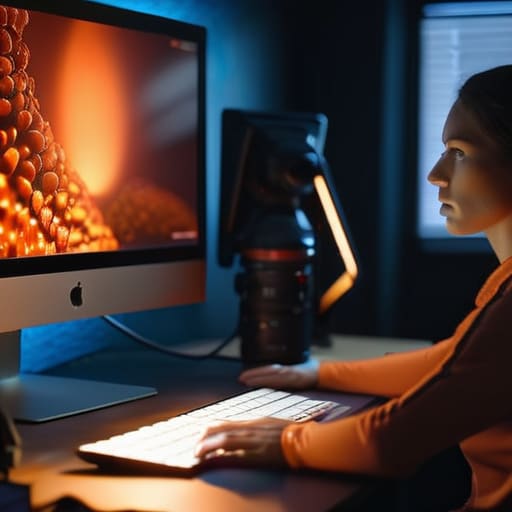
Before you even touch a slider in Lightroom, you have to figure out what’s actually happening in the frame. Most of the time, you aren’t dealing with a technical sensor failure; you’re just fighting a messy environment. I’ve spent countless hours identifying color imbalances caused by a single rogue tungsten lamp in a corner or a client wearing a bright red sweater that’s bleeding into their neck. It’s rarely about the camera settings you missed and almost always about the light you couldn’t control.
Once you spot the culprit, the fix is usually a matter of triage. If the whole image feels “off,” you start by adjusting color temperature to find a neutral baseline. But if the background is fine and only the subject looks sickly, you can’t just shift the whole shot—you’ll end up with a blue background and a perfectly balanced face. That’s when you have to get surgical. You’ll likely find yourself using the color picker tool on a neutral gray or a white shirt to tell the software exactly where “true white” should actually live.
Key Things to Know

First, stop looking at the histogram as a magic wand; it’s just a map of where the light landed, not necessarily where the color went wrong. Most of the time, you’re actually identifying color imbalances caused by a mix of light sources—like that one annoying LED panel in the corner of the studio that’s fighting your tungsten key light. Before you dive into heavy editing, look at your neutrals. If the whites look like old parchment or a sickly mint, you know you’re dealing with a cast, not a stylistic choice.
When you actually sit down to fix it, don’t just slide the temperature bar blindly until the image looks “right.” That’s how you end up with skin that looks like a wax figure. I usually start by using the color picker tool on something that should be a true, boring neutral—a white shirt, a grey stone, or even the whites of an eye if the subject is cooperating. It’s much faster than guessing. If you’re dealing with a particularly stubborn tint, you might need to nudge the tint slider toward magenta or green to balance out the mess.
Practical Tips and Steps
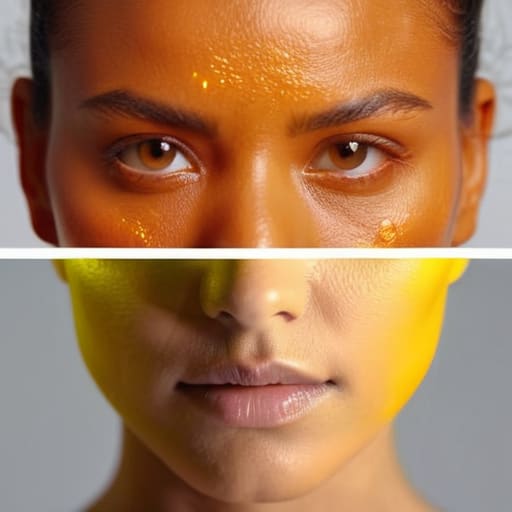
If you’re sitting there staring at a portrait that looks like it was shot under a sickly sodium lamp, don’t panic. Start by identifying color imbalances in the neutral areas—look at the whites of the eyes or a plain grey shirt if you were lucky enough to have one in the frame. Once you’ve spotted the culprit, grab your eyedropper and try using the color picker tool on those neutral spots. It’s the quickest way to reset the white balance in Lightroom or Capture One, but be warned: it’s a blunt instrument. If the client is wearing a vibrant red sweater, the software might get confused and try to turn their face that same shade of crimson.
When the eyedropper fails, you have to get surgical. I usually move to the HSL (Hue, Saturation, Luminance) panel to start fixing skin tone discoloration manually. If the skin looks too jaundiced, I’ll nudge the yellow saturation down and pull the hue slightly toward the red side. It’s about finding the balance between a natural look and the reality of the room you were stuck in. Avoid overdoing the post-processing color grading; if you push the sliders too hard, you’ll end up with skin that looks like plastic rather than a human being.
Common Mistakes to Avoid
The biggest mistake I see is the “nuclear option”—trying to fix everything in post-processing when the damage was done in the room. If you’re staring at a portrait where the subject looks like they’ve been dipped in orange juice, don’t just crank the blue slider until the whole image turns arctic. You’ll end up with muddy shadows and a weird, artificial look. Instead of blindly adjusting color temperature across the entire frame, look closer. Often, you’re dealing with a localized issue, like a warm bounce from a wooden wall, rather than a global white balance failure.
Another trap is getting obsessed with the using color picker tool on a random piece of clothing or a stray shadow. If you click a navy blue tie to set your white balance, your skin tones are going to look sickly and jaundiced. I’ve spent way too many hours fixing skin tone discoloration because I trusted a single pixel instead of my own eyes. Trust your eyes over the software’s math. If the skin looks slightly off, nudge it manually; don’t let the computer decide how a human being should actually look.
Final Thoughts
At the end of the day, don’t let a weird tint convince you that you’ve failed. Most of the time, you’re just fighting the physics of a poorly lit room or a client’s questionable choice in wardrobe. If you find yourself stuck in the weeds of post-processing, remember that identifying color imbalances early in the shoot—even just by glancing at your histogram or a quick test shot—saves you hours of frustration later. It’s much easier to move a light three inches to the left than it is to try and save a face that looks like it’s been submerged in orange juice.
If you’re already in the middle of an edit and the damage is done, don’t panic. Grab your color picker tool and start making surgical strikes rather than global changes. I’ve learned that fixing skin tone discoloration is a delicate dance; if you push the temperature too far to fix a blue shadow, you might end up making your subject look like they have a fever. Keep it subtle. The goal isn’t perfection; it’s making sure the person in the frame actually looks like themselves.
Five ways to stop fighting your white balance mid-shoot
- Stop trusting Auto White Balance when you’re working near a window. It’s a liar. The moment a cloud passes over or a car drives by, your camera is going to try to “compensate,” and suddenly your subject’s skin looks like they’ve been eating nothing but Cheetos for a week. Lock it in manually with a grey card or a white piece of paper before you even turn the lights on.
- Watch out for those “hidden” light sources. You might have your strobes dialed in perfectly, but if there’s a warm lamp in the corner of the room or a weirdly colored neon sign visible in a reflection, it’s going to bleed into your shadows. If you can’t turn it off, you have to flag it or move the subject. Don’t try to fix a muddy color mix in Lightroom later; it’s a nightmare.
- Check your gels, and check them twice. If you’re mixing daylight-balanced strobes with tungsten room lights, you’re basically inviting a color cast to the party. If you can’t get the room lights under control, slap a CTB (Color Temperature Blue) gel on your key light to force it to play nice with the ambient mess.
- Be wary of the wardrobe. I’ve seen more “color cast” issues that were actually just a client wearing a bright red sweater or a lime green blouse. The light bounces off that fabric and hits their jawline, turning their skin a sickly shade of magenta or yellow. If the clothes are loud, you need to be even more precise with your light positioning to avoid that bounce.
- Use a grey card, even if you think you’re too experienced for it. I used to think it was a waste of time until I spent three hours trying to fix a subtle green tint on a corporate headshot because of some weird fluorescent office lighting. It takes ten seconds to get a clean reading, and it saves you an hour of squinting at histograms later.
## The reality of the color cast
“Don’t go hunting for a setting in Lightroom until you’ve looked at the room. Half the time, you aren’t fighting a technical error; you’re just fighting a client’s choice of lime-green wallpaper or that one flickering fluorescent tube in the corner that refuses to cooperate.”
Iwona Krawczyk
One last thing before you pack up
At the end of the day, fixing a color cast is less about mastering complex software and more about developing an eye for what’s actually happening in the room. We’ve talked about checking your white balance before you even click the shutter, managing those nasty fluorescent overheads, and knowing when to stop fighting the light and just embrace the mood. Remember, you can fix a lot in Lightroom, but you can’t fix a fundamental misunderstanding of your light sources once the files are on the card. If you can control the environment and keep a close watch on your skin tones during the shoot, you’ve already won half the battle.
Don’t let a stray tint or a weirdly warm shadow make you feel like you’ve failed. Even after years of assisting and shooting my own commissions, I still find myself staring at a histogram wondering why the whites look like old parchment. Photography is a series of small, constant negotiations between you, your gear, and the physics of the room. If you get it wrong, adjust and move on. The goal isn’t to be a perfect machine; it’s to be a professional who knows exactly how to steer the ship back on course when the lighting decides to go rogue.