
I remember sitting in a dim studio three years ago, staring at a high-res portrait of a CEO who had spent the entire shoot insisting he looked “tired.” I spent forty minutes meticulously trying to figure out how to remove a blemish without a smudge, only to realize I was fighting the wrong battle. I wasn’t just fighting a temporary breakout; I was fighting my own tendency to over-edit. Every time I thought I’d fixed a spot, I’d zoom in too far and accidentally turn a human cheek into a plastic, airbrushed wasteland. It’s the classic mistake: you try to fix one tiny imperfection and end up erasing the very person you were hired to capture.
I’m not going to give you a lecture on expensive, proprietary AI plugins or some magical “one-click” miracle that leaves skin looking like a glazed donut. Instead, I’m going to tell you how I actually handle this in my workflow. We’re going to talk about the specific tools, the intentional restraint required, and the exact moment you need to stop clicking. This is about keeping the texture, keeping the soul, and finally learning how to remove a blemish without a smudge that ruins the entire frame.
The Unpredictable Subject When Skin Refuses to Cooperate
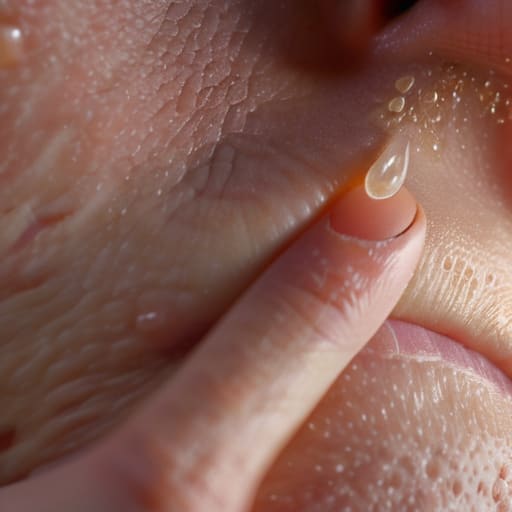
The Unpredictable Subject: When Skin Refuses to Cooperate
We’ve all been there. You’ve spent forty minutes coaxing a CEO out of their shell, the light is finally hitting that perfect angle, and then you see it: a bright, angry breakout right on the tip of the nose. Suddenly, the client’s posture shifts, they see themselves on the back of your LCD, and they’ve decided they look “terrible.” This is where the panic sets in, but you can’t let it show. If you rush the fix, you’ll end up with a patch of skin that looks like polished plastic, and once you lose that organic feel, the portrait is dead.
The mistake most people make is treating every spot like a heavy-duty construction project. When I’m navigating a high-pressure skin retouching workflow, I have to decide instantly if I’m playing surgeon or an architect. If you’re choosing between the Photoshop healing brush vs clone stamp, remember that the clone stamp is a blunt instrument; it’s great for removing a stray hair, but it’s a disaster for skin because it copies the texture exactly, including the flaw. You want to blend, not just cover, or you’ll end up with a smudge that looks even more unnatural than the original blemish.
Choosing Your Weapon Photoshop Healing Brush vs Clone Stamp
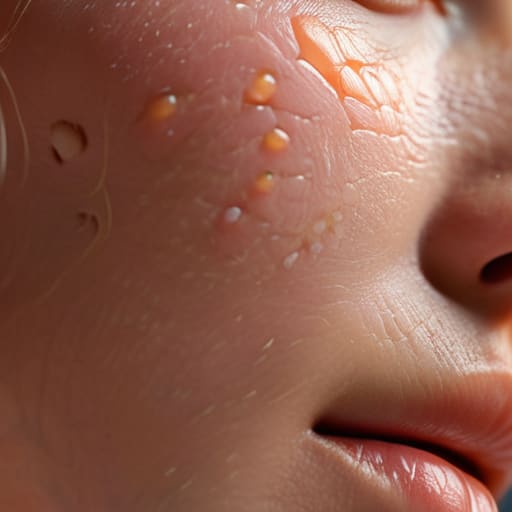
When you’re staring at a breakout that looks like a mountain range, you have to decide which tool is going to do the heavy lifting. Most people jump straight to the Clone Stamp because it feels more “in control,” but that’s usually where the disaster starts. The Clone Stamp is a literal copy-paste; it takes the exact pixels from one spot and slaps them onto another. If you use it on skin, you end up with a patch that looks like a sticker because you’ve lost the underlying light and shadow. It’s a blunt instrument, and if you aren’t careful, you’ll end up with a face that looks like it was carved out of plastic.
For a more natural skin retouching technique, I almost always lean on the Healing Brush first. The magic of the healing brush is that it doesn’t just copy pixels; it samples the texture but blends the color and tone from the source. This is the secret to preserving skin texture in editing without making the subject look like a CGI character. If you’re working on a high-end portrait, you’ll eventually graduate to frequency separation, but for a quick fix on a Tuesday afternoon, just remember: the Healing Brush respects the light, while the Clone Stamp usually fights it.
How to Remove a Blemish Without a Smudge
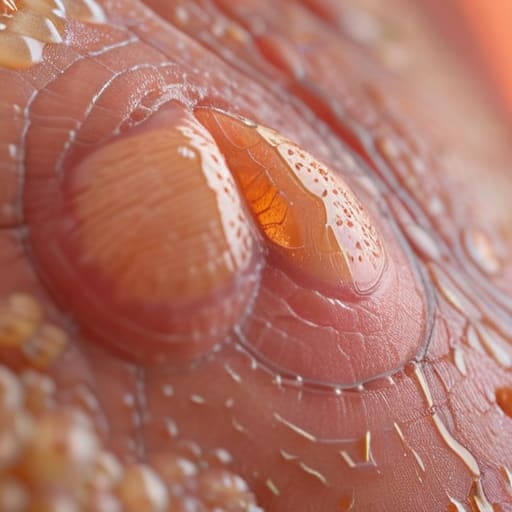
The trick is to stop thinking about the blemish as a “thing to delete” and start thinking about it as a disruption in the light. If you just hammer away with a brush, you end up with a patch of skin that looks like a piece of polished plastic. To avoid this, you need to prioritize preserving skin texture in editing above all else. I always zoom in to about 200%—if you aren’t seeing the actual pores of the skin, you’re flying blind. You want to sample a patch of skin that is nearly identical in color and texture to the area surrounding the spot, then lay it over with a very low opacity or a light touch.
If you’re dealing with something more stubborn, like a deep scar or a heavy breakout, don’t try to fix it in one go. This is where a proper non-destructive photo retouching approach saves your skin (and your client’s). Instead of one heavy-handed stroke, use three or four tiny, feathered clicks. It feels slower, but it keeps the micro-shadows and the natural grain intact. If you lose the texture, you’ve lost the person.
Preserving Skin Texture in Editing While Fixing Mistakes
The biggest mistake I see—and I’ve made it myself during a late-night session when I just wanted to go to sleep—is treating skin like a piece of plastic. If you use a heavy-handed approach, you end up with that “porcelain doll” look that feels uncanny and, frankly, a bit insulting to the person in the frame. To avoid this, your skin retouching workflow needs to prioritize the micro-details. I always tell my assistants: if you can’t see the pores, you’ve gone too far. You aren’t trying to create a new face; you’re just tidying up the one that’s already there.
If you find yourself getting bogged down in a complex frequency separation tutorial just to fix one stray pimple, stop. You’re overcomplicating it. For most minor issues, a light touch with a small, soft brush is better than splitting the image into high and low frequencies. The goal is preserving skin texture in editing so that when the client zooms in on their portrait, they see their actual skin, not a blurry digital smudge. Keep your opacity low, work in small increments, and always step back from the monitor every few minutes to regain some perspective.
A Natural Skin Retouching Technique for Real People
If you want to stop looking like a plastic surgeon and start looking like a photographer, you need to stop treating every spot like an emergency. My preferred skin retouching workflow isn’t about nuking the entire face; it’s about being surgical. I usually start by creating a new, empty layer for all my work. This is the golden rule of non-destructive photo retouching. If you work directly on the original pixels, you’ve already lost the ability to undo the damage once you realize you’ve accidentally turned a cheek into a smooth, featureless marble slab.
Once you’re on your blank layer, I lean heavily on the Healing Brush tool rather than the Clone Stamp. The Clone Stamp is a blunt instrument; it copies pixels exactly, which is why it often creates those tell-tale “smudged” patterns that scream “amateur.” The Healing Brush, however, is smarter—it samples the texture but blends the color. If you find yourself getting deep into a complex portrait, you might eventually want to look up a frequency separation tutorial to handle color tones and texture separately, but for a quick client turnaround, just keep your brush size slightly larger than the blemish itself and work with the grain of the skin, not against it.
Non Destructive Photo Retouching and a Better Workflow
If you’re clicking directly on your “Background” layer to fix a stray pimple, stop. Just stop. I spent years watching assistants undo hours of work because they didn’t understand the concept of a safety net. The absolute golden rule of my skin retouching workflow is to never, ever touch the original pixels. Create a new, empty layer for every single action. Whether you are deciding between the photoshop healing brush vs clone stamp, you should be sampling from a clean layer or working on a dedicated adjustment layer. This isn’t just about being tidy; it’s about the fact that clients will change their minds about how much “perfection” they actually want once they see the proof.
Working non-destructively also gives you the breathing room to be experimental. If you try a frequency separation technique and realize you’ve accidentally turned their cheek into a piece of smooth plastic, you can just delete the layer and try again. Real retouching is about layers of subtlety, not one heavy-handed stroke that you can’t undo without losing your mind.
Five Rules of Thumb to Keep Your Retouching from Looking Like Plastic
- Zoom in way further than you think you need to. If you’re trying to fix a spot while looking at the whole face, you’re going to lose the context of the skin grain, and that’s exactly how you end up with a blurry, smudged mess that looks like a thumbprint.
- Stop using the brush at 100% opacity. Even if you’re using the Healing Brush, drop that opacity down to 30 or 50 percent and build the correction in layers. It gives you the control to let the actual skin texture peek through the fix.
- Watch your sample point like a hawk. The biggest mistake I see is grabbing texture from a part of the face that has a different light direction or pore density. If you sample from a cheek to fix a forehead blemish, the lighting won’t match, and the “smudge” will actually be a patch of mismatched skin.
- Check your work by toggling the layer visibility. Every few minutes, turn your retouching layer on and off. If you see a dark halo or a weirdly smooth patch that looks like a hole in the photo, you’ve gone too far. If it doesn’t look natural when the layer is off, it’s not done.
- Respect the “character” marks. If a client has a permanent mole or a scar they’ve lived with for twenty years, leave it alone unless they specifically ask. Trying to “fix” something that isn’t a temporary blemish is the fastest way to make a portrait look uncanny and fake.
The Golden Rule of Retouching
If you look at a portrait and the skin looks like polished marble or a smoothed-out piece of plastic, you haven’t fixed a blemish—you’ve erased the human being sitting in front of you. My goal isn’t to make them perfect; it’s to remove the distraction so we can actually see them.
Iwona Krawczyk
The Final Check
At the end of the day, avoiding that dreaded smudge comes down to restraint and knowing your tools. We’ve talked about choosing the right brush, working non-destructively so you don’t bake mistakes into your RAW file, and—most importantly—respecting the actual texture of the skin. Whether you’re using a healing brush to blend or a clone stamp to rebuild, the goal isn’t to create a plastic, airbrushed mask that looks like a CGI character. It’s about removing the distraction—that one temporary breakout or stray hair—so the viewer can actually see the person you spent an hour posing and lighting in the studio. If you find yourself zooming in to 400% for twenty minutes, you’ve probably gone too far; step back and look at the whole face.
Retouching is a bit of a tightrope walk, and honestly, you’ll probably trip over it occasionally. You’ll over-smooth a cheekbone or accidentally erase a character line that actually made the portrait work. That’s fine. The point isn’t to achieve digital perfection, because perfection is boring and, frankly, quite easy to fake. The point is to honor the subject by fixing the things that get in the way of their expression. Keep your edits subtle, keep your workflow clean, and remember that the best retouching is the kind no one notices. Now, close the laptop and go get some coffee; you’ve earned it.