
I spent three years of my assistant days watching senior photographers agonize over technical manuals, convinced that a specific setting in their software was the secret to that “expensive” look. They’d spend forty minutes debating bit depth while the client sat in the lobby, getting increasingly annoyed by the delay. Let me tell you something: you can obsess over how to choose a colour space until your eyes bleed, but it won’t magically save a portrait where the skin tones look like bruised fruit because your lighting was a disaster. Most of the “expert” advice out there is just noise designed to make a simple concept feel like rocket science.
I’m not here to give you a lecture on mathematical gamuts or the physics of light. Instead, I want to give you the practical reality of what actually matters when you’re sitting in front of a monitor at 11 PM. We’re going to strip away the jargon and talk about the actual workflow—from the moment you hit the shutter to the second you upload to a web gallery—so you can stop second-guessing your settings and just get on with the work.
It Is Not the Lens It Is How You Choose a Colour Space
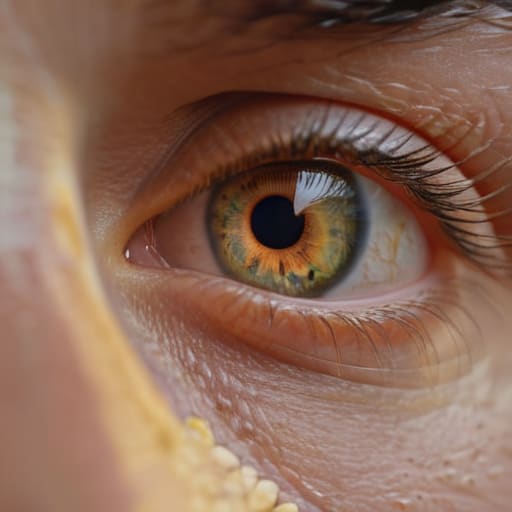
I’ve spent enough time on sets to know that when a client complains that the skin tones look “off” or “muddy,” the first instinct is to blame the glass or the sensor. They think they need a more expensive prime or a better dynamic range. But usually, the lens is doing its job perfectly; the failure happened much earlier, in the digital pipeline. If you’re shooting high-end portraits and then squeezing everything into a narrow container, you aren’t capturing detail—you’re just managing a loss.
This is where understanding color gamut becomes more important than your gear list. It’s the difference between having a playground to work in and being trapped in a closet. If you’re debating ProPhoto RGB vs Adobe RGB, you aren’t just picking a file format; you’re deciding how much room your colors have to breathe before you start clipping them in post. If you choose a space that’s too small for your sensor’s capability, you’re effectively throwing away the data you worked so hard to capture under those lights. It’s a technical decision that dictates whether your final image actually looks like the scene in front of you.
Understanding Color Gamut Before Your Files Lose Their Soul

Think of color gamut as the boundaries of a playground. Inside the lines, everything is safe; outside, you’re trying to describe a shade of sunset that the equipment simply cannot hold. When I’m shooting a portrait and the client is wearing a specific, muted linen, I need to know that the subtle shifts in those neutrals aren’t going to be crushed into a muddy grey the moment I hit save. This is where understanding color gamut becomes less about math and more about damage control. If you pick a playground that’s too small, you’re essentially clipping the very details you spent an hour lighting.
The real headache starts when you realize that ProPhoto RGB vs Adobe RGB isn’t just a technical debate—it’s a choice about where you want your data to live. If you’re working in a massive space like ProPhoto, you’re capturing every microscopic nuance the sensor can spit out, but you’re also walking a tightrope. One wrong move in your export settings and those rich, deep tones will look neon and broken on a standard screen. It’s not about having the “best” space; it’s about choosing the one that won’t betray you during the handoff.
The Srgb vs Adobe Rgb for Web Debate Is Exhausting
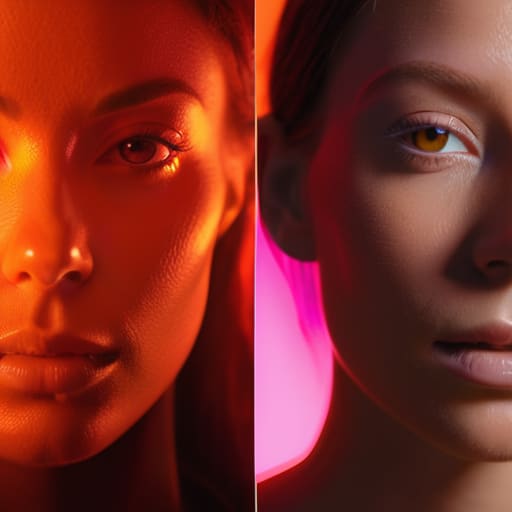
Every time I sit down to explain the sRGB vs Adobe RGB for web debate, I feel like I’m explaining why you shouldn’t use a hammer to fix a lightbulb. It’s a circular argument that people treat like a high-stakes philosophical divide, but in reality, it’s just about where your files are going to live. If you’re shooting a corporate headshot that’s destined for a LinkedIn profile or a client’s landing page, you might as well just shoot in sRGB and save yourself the headache. The web is a narrow, predictable little world, and trying to force a massive Adobe RGB gamut into a standard browser is just asking for clamped, neon-looking skin tones that make your subjects look like they’ve been hit by a solar flare.
That said, if you’re doing serious work that needs to live in both the digital and physical realms, you need a better strategy than just picking a side. This is where most people trip up: they think choosing a profile is a “set it and forget it” task. It isn’t. If you want to avoid the heartbreak of seeing your vibrant sunset turn into a muddy gray mess during an export, you have to embrace actual color management workflow tips. You shoot wide, you work in a larger space, and you only downsample when the job demands it. It’s not about which space is “better”; it’s about knowing exactly how much color you’re allowed to play with before you lose control of the output.
Prophoto Rgb vs Adobe Rgb Avoiding the Clipping Trap
If you’ve moved past the basic sRGB debate, you’re probably staring at the ProPhoto RGB option in your Lightroom settings and wondering if it’s a trap. Technically, it’s a massive playground; it captures colors that your eye can barely even perceive, let alone your monitor. But here is the catch: ProPhoto is a high-wire act. If you’re working in this space and your monitor color calibration is even slightly off, you aren’t just seeing colors incorrectly—you are flying blind. You might think you’ve captured a subtle, velvety transition in a shadow, but without a calibrated screen, you’re just guessing where the data ends and the clipping begins.
The real danger of ProPhoto RGB vs Adobe RGB isn’t just the size of the container, but how you handle the edges. When I’m shooting high-end portraits with heavy color saturation, I use ProPhoto to ensure I have every bit of data possible for the edit. However, if you aren’t disciplined with your color management workflow tips, you will end up with “dead” pixels—areas where the color information has simply hit a wall and flattened into a digital smear. It’s not about having the biggest gamut; it’s about having the control to stay within it.
Print vs Digital Color Profiles Managing the Clients Expectations
This is where the real friction starts. You’ll spend three hours dialing in a skin tone in ProPhoto RGB, feeling like a god, only to send a low-res preview to a client who looks at it on a cracked iPhone and tells you, “The colors look muddy.” It’s not your talent; it’s the gap between your calibrated monitor and their uncalibrated screen. When discussing print vs digital color profiles, you have to stop treating them as interchangeable settings and start treating them as two different languages. If you promise a client that their wedding portraits will look exactly like your backlit display, you are setting yourself up for a very long, very frustrating email chain.
The truth is, a print is a physical translation of light, while a screen is just a glowing lie. If you are moving from a wide gamut workspace into a print workflow, you need to be proactive about managing the client’s expectations before the ink even hits the paper. Don’t just hand over a file; explain that what they see on a backlit phone isn’t what they’ll get on heavy matte paper. It’s about being honest about the limitations of the medium so they don’t think you’ve made a mistake when the saturation inevitably shifts.
Color Management Workflow Tips for When Things Go Wrong
Look, you can have the most expensive colorimeter on your desk, but if your workflow is a mess, you’re just accurately viewing garbage. My biggest piece of advice for when the colors start looking “off” is to stop blaming the file and start looking at your chain. If you’re jumping between ProPhoto RGB vs Adobe RGB without a clear plan, you’re going to end up with skin tones that look like they’ve been sunburnt by a dying star. You need a consistent starting point.
When a client sends back a screenshot saying, “the blues look weird,” don’t panic. Usually, it’s a failure of monitor color calibration or a misunderstanding of how their browser handles a wide gamut. I always tell my assistants: check your output intent before you even touch the contrast slider. If you aren’t practicing consistent color management workflow tips—like soft-proofing your final look against a standard profile—you aren’t actually managing color; you’re just guessing. It’s about building a safety net so that when the room is chaotic and the client is stressed, your files at least behave themselves.
Five ways to stop fighting your files and start trusting them
- Pick your workspace before you even touch the shutter; if you’re shooting a high-end corporate headshot for a website, don’t go wandering into ProPhoto territory unless you actually intend to spend an hour fixing the neon skin tones later.
- Trust your monitor more than your eyes; if your screen is uncalibrated, it doesn’t matter if you’re working in sRGB or Adobe RGB, you’re essentially just guessing in the dark.
- Always, always keep your master files in the widest gamut possible; you can always shrink a color space during export, but you can’t conjure back the detail you clipped by being stingy with your initial settings.
- Stop treating ‘Print’ as a magic button; if your client wants a physical book, you need to know their printer’s profile, or you’ll spend the whole afternoon explaining why the deep reds look like muddy brick.
- Match your output to the destination, not your ego; if the final job is for Instagram, convert to sRGB at the very end—don’t try to force a massive, wide-gamut file through a tiny digital straw and wonder why it looks dead.
The math doesn't matter if the foundation is broken
You can spend three hours arguing about whether to shoot in ProPhoto or Adobe RGB, but if you haven’t accounted for the fact that your client is viewing your work on a cracked iPhone screen in a coffee shop, you’re just rearranging deck chairs on the Titanic. Pick the widest space that your workflow can actually handle without clipping, then stop obsessing and go fix your lighting.
Iwona Krawczyk
The Bottom Line
Look, if you’ve followed this far, you know that choosing a colour space isn’t about finding some magical, perfect setting that solves everything. It’s about making a series of calculated compromises so you don’t end up with crushed shadows or neon-green skin tones that look like a fever dream. You need to decide whether you’re working in the wide, dangerous playground of ProPhoto RGB to catch every bit of data your sensor can squeeze out, or if you’re playing it safe with sRGB because you know the client is just going to dump these files straight onto a smartphone. The goal is to match your container to your destination before you even start the import process. If you don’t, you’re just fighting a losing battle against math and physics.
At the end of the day, don’t let the technicalities paralyze you. You can spend three hours debating bit depth and gamut volumes, but that won’t make a poorly lit portrait look any better. The real magic happens when you stop worrying about the metadata and start focusing on the light, the subject, and the story you’re trying to tell. Use a workflow that protects your files, but remember that the soul of the image is found in the way the light hits a person’s eyes, not in the specific profile you selected in Lightroom. Get the technical bits right so they stay out of your way, then get back to the actual work.