
I once spent three days retouching a series of author portraits, obsessing over the subtle warmth in a skin tone, only to have the client call me, sounding genuinely distressed, because the prints looked sickly and green. I hadn’t failed the subject, and my sensor hadn’t failed me; my monitor had simply been lying to my face. Most people think the secret to professional results is a better lens or a more expensive body, but when it comes to how to choose a monitor for photo work, the industry loves to sell you a mountain of technical jargon that means absolutely nothing if your calibration is a joke. You don’t need a spreadsheet of specs that looks like a NASA launch sequence; you need a screen that actually tells the truth.
I’m not here to walk you through a marketing brochure or explain why a certain brand’s “pro” label justifies a mortgage payment. Instead, I want to talk about the actual compromises you’ll make between color accuracy, brightness, and your sanity. This is a guide based on what happens in a real studio when the lights are low and the deadline is breathing down your neck. I’ll show you what to look for so you can stop chasing ghosts and start trusting your eyes.
The Monitor How to Choose a Monitor for Photo Work
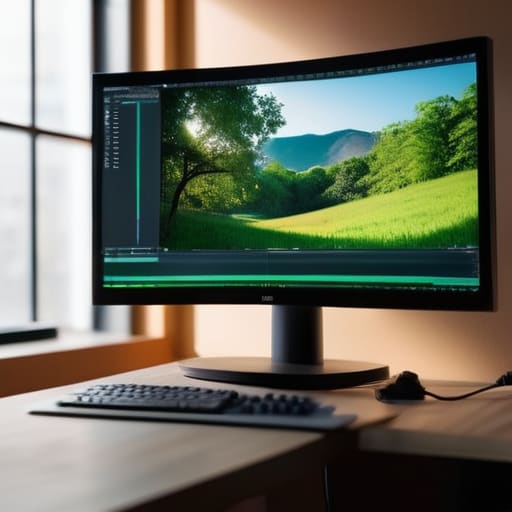
Look, you don’t need a $5,000 reference monitor to start, but you do need to stop trusting your eyes blindly. Most people get distracted by “4K” or “ultra-wide” marketing fluff, but if you’re serious about color accuracy for photographers, you need to look at the panel type first. I always tell my assistants to look for IPS panel technology; it’s the only way to ensure that when you tilt your head slightly to the left, the colors don’t shift into a muddy mess.
Then there’s the headache of color spaces. You’ll see specs tossing around sRGB vs Adobe RGB coverage like they mean the same thing, but they don’t. If you’re mostly delivering web-ready portraits, sRGB is your bread and butter, but if you’re printing large-scale fine art, you need that wider Adobe RGB gamut to capture the subtle shifts in a sitter’s skin tones. Finally, buy a damn colorimeter. Even the best factory settings drift over time, and if you aren’t using calibration tools to reset the baseline, you’re essentially editing in the dark.
Beyond the Glass Why Color Accuracy for Photographers Matters
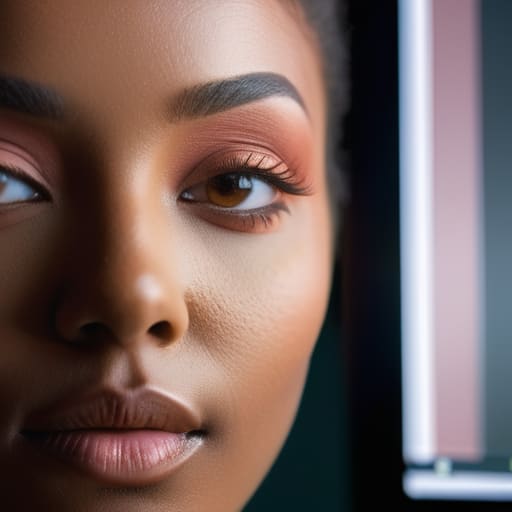
You can spend hours perfecting the skin tones in a portrait, nudging the warmth just so, only to find that when you send the file to a client, they look like they’ve been dipped in orange juice. This isn’t a failure of your eye; it’s a failure of your setup. When we talk about color accuracy for photographers, we aren’t just chasing some academic perfection. We are trying to ensure that the truth you saw in the studio is the same truth that shows up on a screen. If your monitor is lying to you, you aren’t editing; you’re just guessing.
This is where the technical jargon actually starts to matter. I don’t care about marketing buzzwords, but I do care about sRGB vs Adobe RGB coverage. If you’re shooting weddings or corporate headshots, you need to know your monitor can actually display the gamut your camera is capturing. You also need to look at bit depth and grayscale; if your monitor can’t handle the subtle transitions in a shadow, you’ll end up with nasty, jagged banding in your gradients that no amount of retouching can fix. It’s about making sure the math matches the image.
The Great Divide Srgb vs Adobe Rgb Coverage Realities
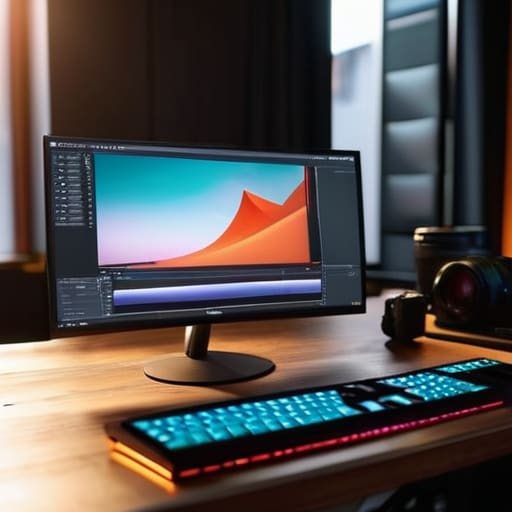
You’ll see it in every spec sheet: the glorious promise of 100% Adobe RGB coverage. It sounds like a dream, especially when you’re looking at high-end panels, but here is the reality check: unless you are printing large-scale fine art exhibition pieces or working in high-end commercial retouching, you might just be paying for extra gamuts you’ll never actually see. Most of the world—your clients, Instagram, even most web browsers—lives entirely within the sRGB universe. If you’re shooting portraits for a local business, chasing that massive Adobe RGB spectrum is often just chasing a ghost.
The real goal isn’t just having a wider range; it’s about how reliably the monitor displays what you’ve actually captured. This is where the debate of sRGB vs Adobe RGB coverage gets messy. I’ve seen photographers buy a monster display thinking it makes them better, only to realize their files look completely different when sent to a client on a standard laptop. You don’t necessarily need the widest possible net; you need consistency. If you can’t trust that your colors are translating accurately from the sensor to the screen, the extra gamut is just expensive noise.
Ips Panel Technology Benefits and the Illusion of Light
When you’re looking at spec sheets, you’ll see “IPS” thrown around like it’s a magic spell. And look, it’s not magic, but it is non-negotiable. If you’re sitting in a studio or even a home office, you’re constantly shifting in your chair, tilting your head, or leaning in to check a stray hair on a client’s collar. On a cheap TN panel, that movement makes the colors shift and the shadows vanish. The IPS panel technology benefits you mostly for one thing: viewing angles. You need the image to stay the same whether you’re looking dead-on or glancing from the side.
But don’t let a high-end panel trick you into thinking the job is done. There is a massive illusion of light that happens when a monitor is bright and punchy right out of the box. A monitor can look “good” while being fundamentally wrong. If you aren’t using colorimeter calibration tools to tether that brightness to reality, you aren’t editing; you’re just guessing based on how much the screen pleases your eyes. A bright screen is easy; a consistent screen is the actual goal.
Bit Depth and Grayscale When Shadows Start Lying
If you’ve ever spent an hour pulling detail out of a dark corner of a portrait, only to find that the shadow has turned into a blocky, digital mess of stripes, you’ve run into the bit depth wall. Most people think a monitor is just a window, but if it’s only outputting 8-bit color, it’s a window with shutters that can’t quite close. You end up with banding in the gradients—those ugly, stair-step lines in a smooth sky or a soft shadow—that make your professional work look like a low-res video from 2005.
When I’m looking at a file, I need to see the subtle transition from a deep charcoal to a true black. This is where bit depth and grayscale become the difference between a print that feels atmospheric and one that feels cheap. You want a monitor that can handle 10-bit color; it provides a much smoother mathematical bridge between shades. Without that extra data, you’re essentially trying to paint a masterpiece with only twelve crayons. It doesn’t matter how good your sensor is if your screen is lying to you about the smoothness of your shadows.
Calibration Tools Fixing the Room Within the Screen
If you think buying a high-end IPS panel means you’re done, you’re kidding yourself. A monitor is a living thing; it shifts. It reacts to the heat in your studio, the age of the backlight, and even the way you’ve been running it. You can have the best specs on paper, but without colorimeter calibration tools, you’re essentially editing in the dark. I remember my first proper colorimeter—it felt like finally being able to see the actual colors in my RAW files instead of just guessing based on a vibe.
Calibration isn’t a “set it and forget it” task; it’s maintenance. You need to sit down once a month, run your device, and accept that the screen you saw yesterday isn’t the screen you’re looking at today. It’s about narrowing the gap between what your eyes perceive and what the file actually holds. If you’re chasing true color accuracy for photographers, you have to stop trusting your eyes and start trusting the hardware. It’s tedious, yes, but it’s the only way to ensure that the skin tones you labored over in the studio don’t turn a sickly grey when the client opens the file on their laptop.
Five things to check before you swipe your card
- Check the matte finish, not just the specs. A glossy screen looks like a dream in a showroom, but the second you turn on your studio lights or a window catches the corner of the room, you’ll be staring at a reflection of your own frustrated face instead of the skin tones you just spent an hour perfecting. Get a high-quality matte coating that diffuses glare without turning the image into a muddy mess.
- Don’t trust the “color accurate” sticker on the box. Every manufacturer claims their colors are perfect, but they’re often calibrated to a factory standard that has nothing to do with the real world. If the monitor doesn’t have a clear, documented Delta E rating (you want it under 2, ideally), they’re just selling you a pretty picture, not a tool.
- Look at the physical size of the workspace, not just the resolution. A 27-inch 4K monitor is a beautiful thing, but if the UI of your editing software eats up half of it, you’re going to be constantly zooming in and out just to see the edges of a crop. I always lean toward 32 inches if the desk allows it; you need the breathing room to actually see the context of your frame.
- Test the viewing angles with your actual body, not a head-on photo. Some panels claim to be IPS, but if you lean back in your chair or shift your weight to the left, the colors might shift or the contrast might drop. If the image changes just because you moved your head, you aren’t editing; you’re guessing.
- Budget for the cables and the ports. It sounds trivial, but I’ve seen people buy a top-tier professional display only to realize their laptop can’t output the full bit depth through the port they have available. If you want that 10-bit color we talked about, make sure your connection—whether it’s Thunderbolt or DisplayPort—can actually carry that much data without choking.
The Lie of the Specs
You can spend six months’ worth of commission chasing a monitor with the highest spec sheet in the catalog, but if you haven’t sat in your actual workspace, checked the glare from that window, and calibrated it to your own eyes, you’re just buying a very expensive way to make the wrong decisions.
Iwona Krawczyk
The Reality Check
Look, you don’t need a setup that costs more than your first car, but you do need to stop guessing. If you aren’t checking for an IPS panel, verifying your color gamut coverage, and—this is the part everyone skips—actually using a calibration tool, you aren’t editing; you’re just playing with shadows. A monitor is a tool, much like a specific focal length or a particular softbox, and it only works if you understand its limitations. You have to know where the lies begin, whether it’s a crushed black level in an 8-bit file or a shift in hue because your viewing angle is off. Don’t let the spec sheet do the thinking for you; trust your eyes, but verify them with data.
At the end of the day, the gear is just a way to bridge the gap between what you saw in the studio and what the client sees on their phone. We spend so much time worrying about the “perfect” setup, but the truth is that perfection is a moving target. The goal isn’t to own the most expensive glass in the room; it’s to build a workflow where you can finally stop second-guessing your decisions. Once you have a monitor you actually trust, you can stop staring at the pixels and start looking at the portrait again. That’s when the real work actually starts.