
I once spent three hours on a single author portrait, hunched over a monitor in a dark studio, trying to fix skin that looked like a topographical map of the Alps. I had followed every YouTube tutorial to the letter, but the result wasn’t “flawless”—it was uncanny. I had turned a living, breathing human being into a piece of smoothed-out plastic, and I felt like a fraud. Most people think learning how to retouch skin with frequency separation is about mastering a complex mathematical trick, but the truth is that most tutorials skip the part where they tell you how easy it is to ruin a face in ten minutes.
I’m not here to give you a lecture on pixel math or sell you a preset that does half the work for you. Instead, I want to show you the actual, messy workflow I use when I need to clean up a complexion without losing the person underneath. We’re going to talk about the specific brush pressures, the uncomfortable amount of zooming in, and how to know exactly when to stop. This is about getting the skin to look like skin, not like a filtered Instagram post from 2014.
Understanding How to Retouch Skin With Frequency Separation
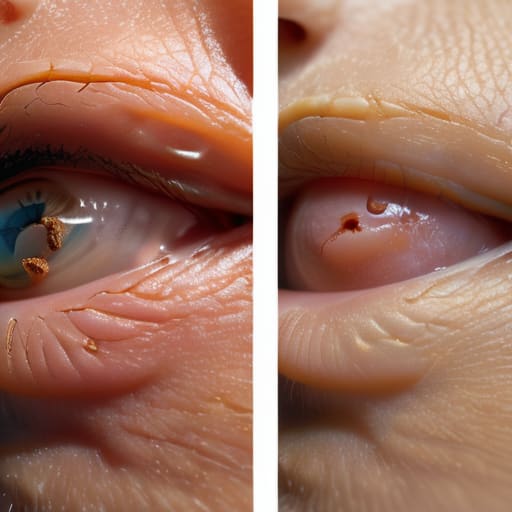
Before you even touch your stylus, you have to understand what you’re actually doing. Frequency separation isn’t some magic filter that makes people look like porcelain dolls; it’s just a way of separating color and texture layers so you can stop fighting them both at once. Usually, when we retouch, we’re trying to fix a blotchy skin tone while simultaneously trying to hide a stray hair or a pore. If you try to do both on one layer, you end up with that dreaded “plastic” look where the person loses all their humanity.
In a proper photoshop skin retouching workflow, we split the image into two distinct worlds. The low frequency layer handles the big, messy stuff—the blotchiness, the redness, and the uneven shadows. The high frequency layer holds onto the actual grit: the pores, the fine lines, and the skin grain. By isolating them, you can smooth out the tonal shifts on the low layer without accidentally smearing the skin texture into oblivion. It’s about surgical precision, not a heavy-handed blur.
Key Things to Know
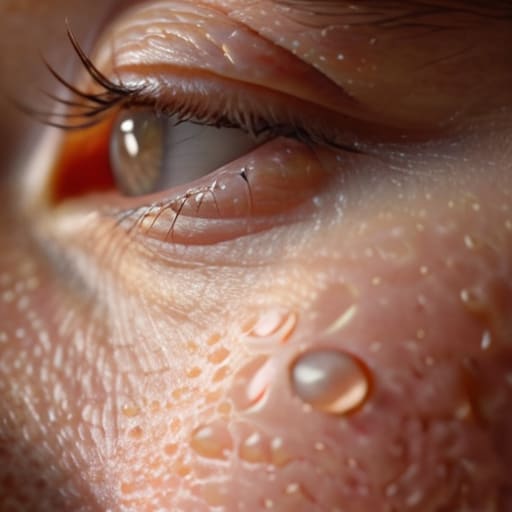
First, let’s get one thing straight: this isn’t a magic wand. If you’re looking for a way to turn a person into a plastic doll, you’re using the wrong tool. The whole point of separating color and texture layers is to give you surgical control. You want to fix that blotchy, uneven redness on a cheek without accidentally blurring away the actual pores that make them look like a human being. If you lose the skin’s grain, the portrait is dead.
You also need to understand that your Photoshop skin retouching workflow lives or dies by your opacity settings. I’ve seen too many beginners go in at 100% opacity on a new layer and wonder why their client looks like a CGI character. The goal is digital skin texture preservation. You should be working in small, incremental nudges. Think of it like adjusting the lighting in a room—you don’t just flip a switch and hope for the best; you move the modifier an inch at a time until the shadows fall where they should.
Practical Tips and Steps
First, stop trying to be a hero with the brush tool. Before you even touch a layer, make sure your setup is clean. I always start by creating two separate layers: one for the color (low frequency) and one for the texture (high frequency). The trick to a decent photoshop skin retouching workflow isn’t about how much you blur, but how much you don’t blur. If you find yourself zooming in to 300% just to find a blemish, you’ve already gone too far. Scale back.
When you’re actually working the low-frequency layer, use a soft brush with a very low opacity—think 3% to 5%. You aren’t painting; you’re gently nudging tones. The goal is smoothing skin tones without losing detail, not turning your subject into a plastic mannequin. If the transition between a shadow and a highlight looks like a smudge on a window, you’ve overdone the Gaussian blur. Keep your movements small. If the skin looks “uncanny,” you’ve likely lost the natural micro-contrast that makes a person look human rather than a CGI render.
Common Mistakes to Avoid
The biggest mistake I see is the “uncanny valley” effect, where the subject suddenly looks like they’re made of wax. This usually happens because you’re being too aggressive with the low-frequency layer. If you over-smooth those color transitions, you lose the subtle shifts in blood flow and shadow that make a face look human. You aren’t just cleaning up a blemish; you are managing the natural topography of the skin. If you push the blur too far, you aren’t doing high-end portrait retouching techniques; you’re just erasing the person.
Another trap is ignoring the edges. When you’re separating color and texture layers, it is incredibly easy to accidentally smudge the transition between a cheekbone and a shadow, or worse, the edge of a hair strand. This creates those tell-tale “halos” that scream amateur. I always tell my assistants to zoom in to 200% and check the boundaries. If the texture layer doesn’t sit perfectly on top of the color, your digital skin texture preservation will fail, and the whole image will look like a cheap filter rather than a professional edit.
Final Thoughts
At the end of the day, don’t let the software turn you into a plastic surgeon. I’ve seen too many people get so caught up in the technicality of separating color and texture layers that they forget they were originally shooting a human being, not a mannequin. If you find yourself zooming in until you can see the individual atoms of a pore, you’ve gone too far. The goal isn’t perfection; it’s a version of the person that looks like they actually belong in the light you set up.
If you’re still feeling a bit shaky with the process, just remember that a solid photoshop skin retouching workflow is built on restraint. You aren’t trying to erase the subject’s character; you’re just cleaning up the noise so their expression can actually do the work. Use the tools to fix the distractions—the stray red patch or the awkward shadow from a stray hair—but leave the skin looking like skin. If you can master that balance between smoothing and digital skin texture preservation, you’ll stop fighting the pixels and start actually finishing your edits.
Five ways to stop over-polishing your subjects
- Don’t go hunting for perfection. If you try to smooth out every single pore, you’ll end up with a subject that looks like they’ve been dipped in wax, and no amount of color correction will fix that plastic look. Use the low-frequency layer to even out the blotchiness, but leave the texture alone unless it’s actually a distraction.
- Watch your brush opacity like a hawk. I used to think a 100% opacity brush was the way to go for speed, but all it does is create “halo” effects where the skin looks unnaturally bright or dark around a blemish. Keep it between 10% and 20% and build it up in layers; it takes longer, but it actually looks like skin.
- Check your work against the original every thirty seconds. It is incredibly easy to get “retouching blindness” where you’ve spent forty minutes staring at a patch of forehead and you can no longer tell if it looks human or a CGI render. Toggle the visibility of your layers off and on constantly to make sure you haven’t drifted too far from reality.
- Mind the transition zones. The biggest giveaway that you’ve used frequency separation is a weird, muddy line where the jaw meets the neck or where the hair shadows hit the temple. If you see a hard edge, your brush is too small or your selection is too tight. You want the color to bleed naturally into the texture.
- Stop retouching the “character.” If I’m shooting an author portrait, I want to see the lines around their eyes when they smile—that’s where the personality lives. If you use frequency separation to erase every wrinkle, you aren’t retouching a portrait anymore; you’re erasing the person. Only fix the stuff that looks like a temporary flaw, not the stuff that makes them who they are.
The digital facelift trap
Frequency separation is a tool, not a magic wand; if you use it to erase every pore and texture, you haven’t retouched a portrait, you’ve just manufactured a plastic mannequin that no one actually wants to look at.
Iwona Krawczyk
The reality of the finished file
At the end of the day, frequency separation is just a tool to help you manage the chaos of a real-world shoot. We’ve talked about separating the texture from the tone, keeping your low-frequency layer subtle so you don’t end up with a face that looks like a plastic mannequin, and the absolute necessity of not overworking those color transitions. If you’ve followed the steps, you should have a skin surface that looks clean but still retains the tiny, human imperfections that tell us there’s a person behind the lens. Just remember: if you find yourself spending three hours on a single cheekbone, you haven’t mastered the technique; you’ve just lost your sense of scale.
Don’t let the software convince you that perfection is the goal. My job, and yours, isn’t to erase the person; it’s to make sure the light and the skin don’t distract from the character we captured in the studio. If the retouching is so heavy that you can’t see the expression in their eyes, you’ve failed the subject, no matter how seamless the pixels are. Use these layers to fix the mess caused by bad lighting or a sudden change in the room’s temperature, but always leave room for the human. That’s the part that actually matters.